

Battlefield 6 Aim Settings Guide | Best Aim Settings
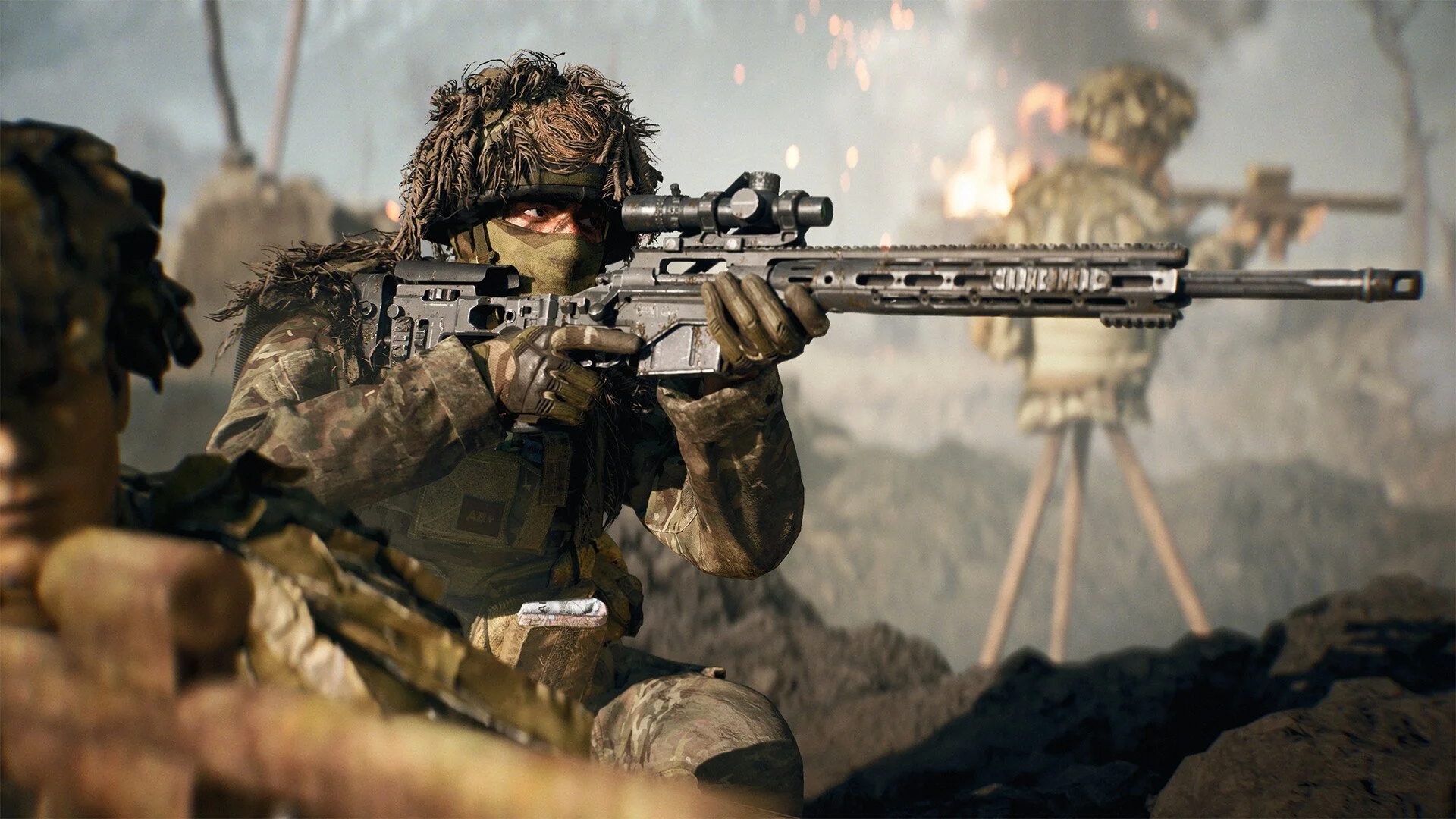
Getting your aim just right in Battlefield 6 can make all the difference between landing a headshot or missing entirely. The game’s menus are packed with options, and it’s easy to get lost trying to find the ones that actually matter. This guide breaks down every key Battlefield 6 aim setting and shows exactly what to change for better control and consistency.
Best Aim Settings in Battlefield 6
These are the recommended aim settings for the best precision and feel across all setups:
Uniform Infantry Aiming: On
Zoom Sensitivity Coefficient: 0 (mouse and keyboard on monitor)
Zoom Sensitivity Coefficient: 180 (controller or TV setup)
Crosshair Opacity: 100%
Crosshair Intensity: High
Crosshair Style: Thick
Motion Blur: Off
Camera Shake: 0%
Field of View: Player preference (most use 85–100)
Minimap Size: Slightly larger than default
Interior Zoom: Optional, depends on preference
These settings offer balanced precision, visibility, and stability, helping you stay locked in during close fights or long-range shots.
Aim Sensitivity Settings
Uniform Infantry Aiming
Uniform Infantry Aiming keeps your aim movement consistent across all zoom levels. You’ll find it under Mouse & Keyboard > Infantry > Control Settings or Controller > Edit Settings > Infantry > Control Settings. Set it to On. It makes aiming predictable and easier to master.
Zoom Sensitivity Coefficient
This setting changes how your aim speed adjusts when you zoom in.
On PC with a mouse and keyboard, set it to 0.
On controller or TV setups, set it to 178.
This keeps your muscle memory consistent, so aiming down sights feels natural no matter what optic you use. If you play on an ultra-wide monitor, start at 0 and adjust slightly upward if aiming feels off.
Per Zoom Level Sensitivity
You can fine-tune each magnification level individually. This is great if you use multiple scope types. Go to Mouse & Keyboard > Infantry > Control Settings, then scroll to the Zoom section. Tweak each magnification level until your aim speed feels the same across them all.
Crosshair and Visibility Settings
Crosshair Thickness and Opacity
Go to Graphics > Icons & Indicators, then Edit Crosshairs and Indicators.
Set Crosshair Opacity to 100%.
Raise Intensity until the crosshair stays visible in every environment.
Choose Thick for your crosshair style.
If you want a classic static crosshair, disable Infantry Crosshair Projection. If motion sickness is an issue, keep it On to help with movement tracking.
Friendly and Enemy Colours
Battlefield 6 lets you edit colours for friendlies, enemies, and objectives. Go to Accessibility > Graphics Quality Settings > Color Profiles. You can use presets like Tritanopia for higher contrast, or pick Custom to adjust each HUD element manually. This helps icons pop out clearly on all map types.
Icon Intensity and Opacity
Still under Graphics > Icons & Indicators, scroll to the Icon Intensity slider. Adjust it so icons are visible but not distracting. Under HUD Icons, fine-tune opacity for friendlies, enemies, and objectives. The goal is to reduce screen clutter while keeping important information visible during firefights.
Minimap Adjustments
Head to Graphics > Interface and HUD > Advanced HUD Settings. From there, adjust minimap size, opacity, and range. Make it slightly larger than default for better awareness. The Interior Zoom toggle adds an animation for indoor areas, which you can disable if it feels distracting. Also decide if you prefer the minimap rotating with your view or staying fixed.
Camera and Visual Effects
Go to Accessibility > Graphics Quality Settings > Camera Effects.
Turn off Motion Blur for both camera and weapon.
Disable Chromatic Aberration, Film Grain, and Vignette.
Reduce Headbob to the lowest setting.
Set Camera Shake to 0%.
These changes make the image cleaner, remove visual distractions, and help you stay focused on your target.
Final Blurb
Battlefield 6’s aim settings can look intimidating, but once you set them up, the game feels dramatically smoother. Small tweaks like lowering camera shake or standardizing zoom speed can transform your accuracy. Dial these in, hop into a few matches, and you’ll start snapping to targets like a pro.
FAQ
What is the best zoom coefficient for controller players?
Set it to 178. This gives you 1:1 aiming across different scopes when using a controller on a TV or monitor.
Should I use Uniform Infantry Aiming?
Yes. It keeps your aim consistent between zoom levels and helps build reliable muscle memory.
Should I disable motion blur and camera shake?
Absolutely. Turning both off improves visibility and aim precision during fast movement or explosions.
Does this affect vehicles?
You can turn on Uniform Vehicle Aiming if you want, but most players prefer to leave it off for smoother handling.
© 2025 GamerBlurb. Linking is welcome with credit to GamerBlurb.com. Copying or reproduction without permission is not allowed.
More Battlefield 6 Articles


