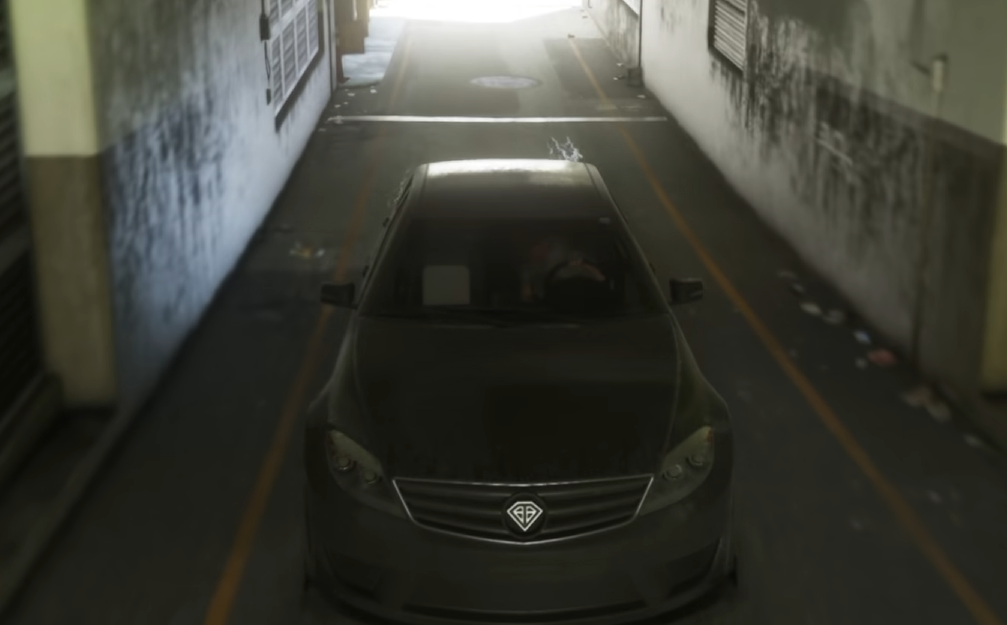
GTA 6's darker environments can be difficult to see if your display isn't calibrated properly. The game includes brightness adjustments for correcting visibility and overly bright highlights, although HDR televisions can complicate the process. You'll find the controls in the Display settings menu.
How to Adjust Brightness in GTA 6
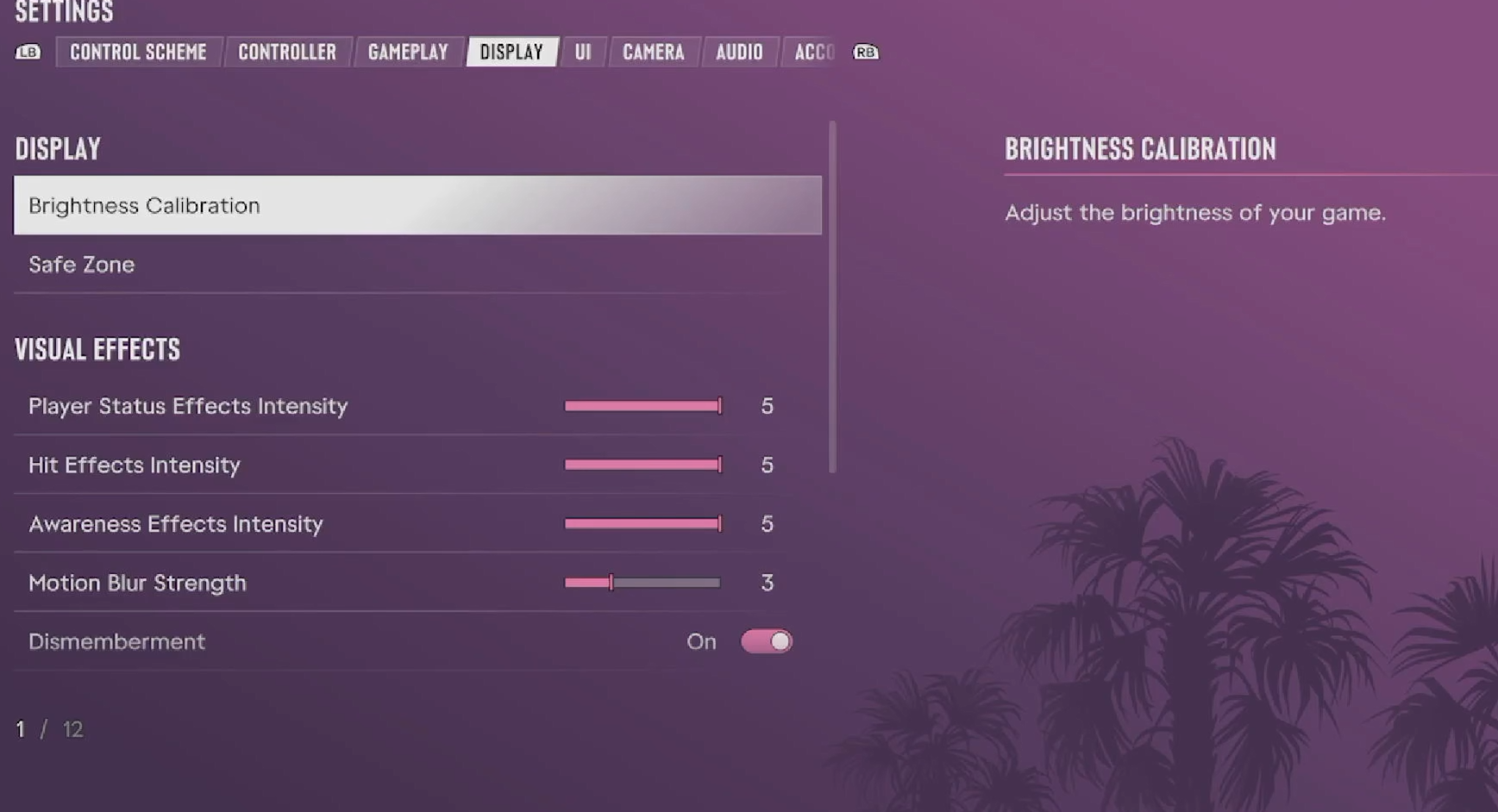
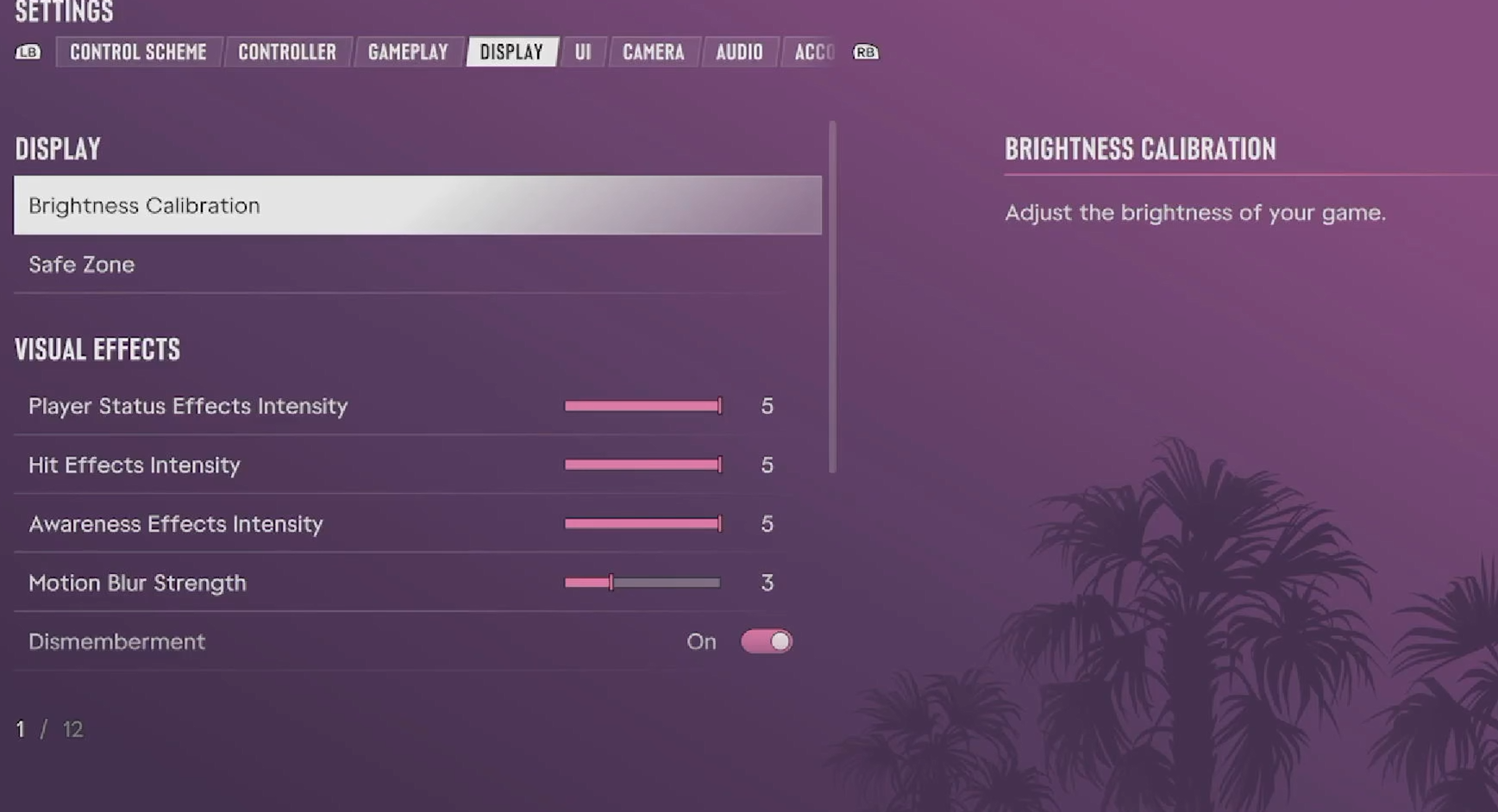
To change your brightness in GTA 6, pause the game and open Settings > Display > Brightness Calibration. This opens the calibration screen, where you can adjust the image until dark areas remain visible without making brighter scenes look washed out.
Pay particular attention to nighttime environments. You should be able to distinguish your character and nearby objects without making shadows appear unnaturally gray.
GTA 6 Brightness Calibration: Rockstar Logo Not Visible
During HDR calibration, GTA 6 asks you to adjust Max Brightness until the Rockstar logo is barely visible. On certain televisions, the logo may be invisible even before you begin moving the slider.
This can happen when the television applies its own HDR processing on top of the game's calibration. In that situation, changing the slider alone may not produce the expected result.
LG TVs
On compatible LG televisions, open your TV's Brightness settings and locate Dynamic Tone Mapping. Select HGiG, then return to GTA 6 and check whether the Rockstar logo becomes visible during calibration.
HGiG helps avoid the television independently adjusting HDR highlights during calibration. It can also produce a darker-looking image than Dynamic Tone Mapping, so you may prefer a different picture mode during normal gameplay.
Samsung TVs
For Samsung televisions, open Expert Settings and try the following adjustments:
These settings can make the calibration logo easier to detect. They're troubleshooting adjustments rather than required permanent picture settings, so compare the results and restore your preferred configuration afterward if necessary.
How to Fix GTA 6 Being Too Dark or Washed Out
A calibration logo becoming visible doesn't automatically mean the final image will look right. Judge the result using GTA 6's dark and bright example scenes, then test it during actual gameplay.
If nighttime scenes are too dark, increase the in-game brightness or HDR Black Levels gradually until you can see important details.
If shadows look gray or the image appears washed out, reduce excessive brightness and reconsider any contrast-enhancing TV settings.
If HDR looks wrong across multiple games, recalibrate HDR through your PS5 or Xbox display settings before adjusting GTA 6 again.
Some OLED users prefer Dynamic Tone Mapping because it makes nighttime scenes easier to see, while others favor HGiG for more controlled HDR presentation. Neither preference replaces proper calibration, and the best-looking setting depends on your television and viewing conditions.
For more detailed adjustments to Max Brightness, Black Levels, and Paper White, use the HDR calibration controls alongside the standard brightness settings. The goal is to preserve visible shadow detail while keeping bright areas from losing definition.