Fistfights in GTA 6 involve more than trading punches. Jason and Lucia can block incoming attacks, dodge punches at the right moment, and counter before an opponent recovers. Both defensive moves use the same button, but knowing when to hold it and when to tap makes the difference.
How to Block and Dodge in GTA 6
Hold X on PS5 or A on Xbox to block incoming punches. To dodge, press the same button just before an opponent's attack connects. These controls apply to GTA 6's default button layout.
Blocking is more forgiving because you can maintain your defense. Dodging requires reacting to the opponent's attack animation, making it better suited to one-on-one fights where you can concentrate on their movements.
How to Dodge and Counterattack
To counterattack in GTA 6, successfully dodge an incoming punch and immediately press Square on PS5 or X on Xbox. Your character will strike back after avoiding the hit.
Holding L2 on PS5 or LT on Xbox locks onto your opponent and allows you to strafe while keeping them in front of you. This makes it easier to follow their attacks and prepare your dodge.
You can also grapple opponents with R2 on PS5 or RT on Xbox. Grappling is a separate melee action, so it isn't required to perform a dodge counter.
GTA 6 Melee Combat Controls
The default melee controls are shared by Jason and Lucia. The table below covers the main actions used during fistfights.
| Action | PS5 | Xbox |
|---|---|---|
| Block | Hold X | Hold A |
| Dodge | Tap X | Tap A |
| Punch / Kick | Square | X |
| Lock On / Strafe | Hold L2 | Hold LT |
| Grapple | R2 | RT |
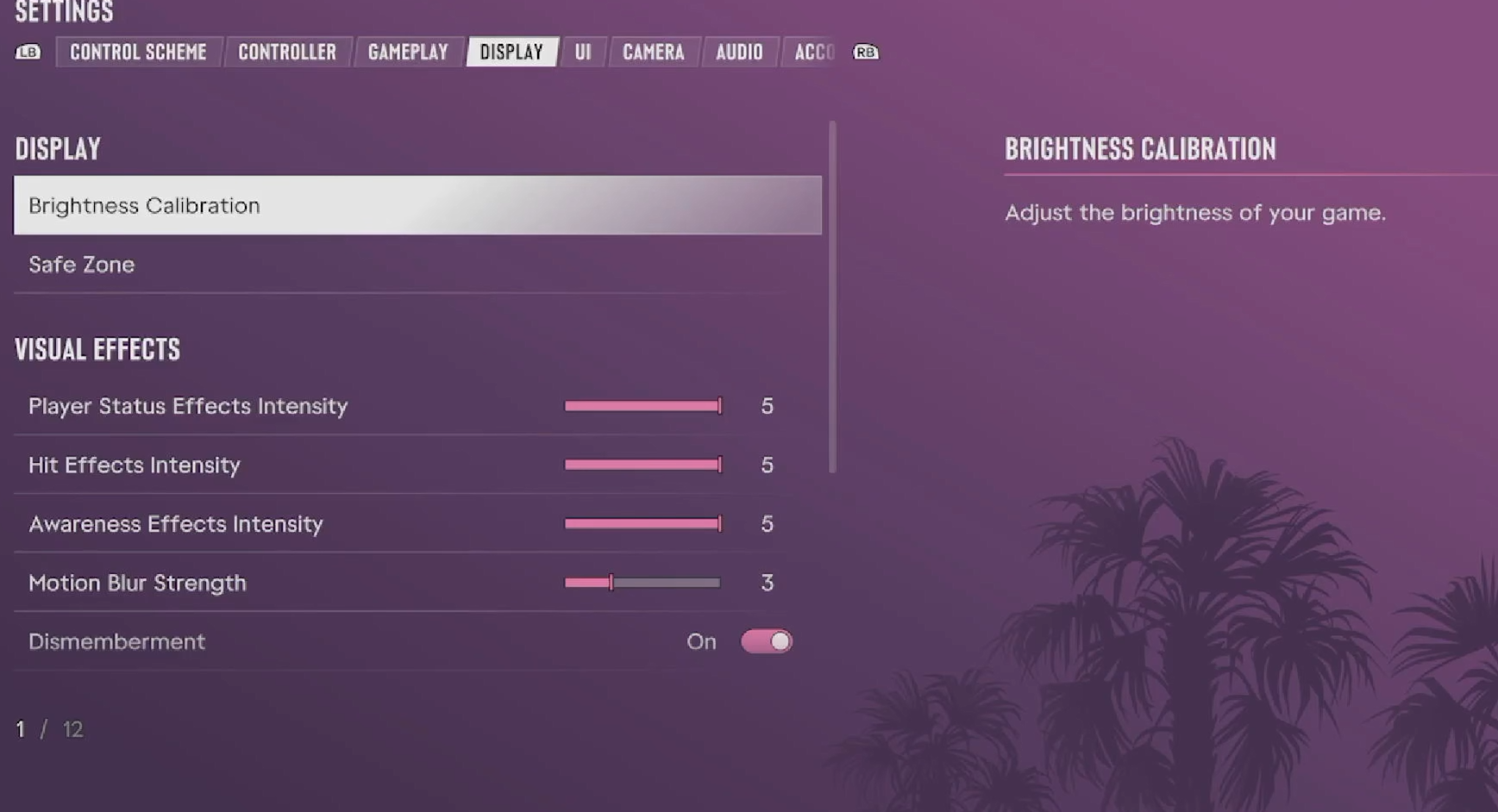
If you've changed your controls, open Settings > Controller > Control Scheme and check the Melee layout for your current button assignments.
The most useful habit in a fistfight is to defend before retaliating. Holding X or A protects you against incoming strikes, while a timed dodge followed by an immediate punch lets you turn an opponent's attack into an opening.