To play co-op in Crimson Moon, reach Sanctus Clypeus and open the multiplayer menu. If you're playing with a specific friend, one player should select Host Game and create a lobby, then send the Host Code shown in their menu to the other player. The second player can select Join Via Code, enter that code, and connect directly to the host's session.
You can also use Quick Match if you don't have a specific person to invite. Crimson Moon supports two players total, so multiplayer consists of you and one other Nephilim rather than a larger party. If you're looking for more information on the player limit, shared lives, difficulty scaling, and how multiplayer changes a Hunt, my Crimson Moon co-op guide covers those systems separately.
Jump To Section:
How to Play Co-op
How to Host a Game
How to Join With a Host Code
How Quick Match Works
Public vs Private Lobby
Co-op Not Working
How to Play Co-op in Crimson Moon
Crimson Moon's co-op options are available from the central hub rather than through a separate multiplayer mode on the title screen. Once you've progressed to Sanctus Clypeus, open the menu and you'll have options for hosting a game, joining another player through a code, or using Quick Match.
If you're trying to play with a friend, I would use the Host Game and Join Via Code options rather than matchmaking. One of you creates the session and the other connects directly to it, which makes the process much more straightforward.
You both need to be far enough into the game to access the hub. If one player has only just started Crimson Moon and can't find the multiplayer options yet, continue through the opening until Sanctus Clypeus becomes available.
How to Host a Co-op Game
The player who wants to host should open the menu while in Sanctus Clypeus and select Host Game. You'll then be able to choose whether the lobby is public or private.
Once the session has been created, the host's menu displays a Host Code. Send that code to the person you're trying to play with, as they'll use it to connect directly to your game.
For two friends playing together, I'd normally create a private lobby. There's no need to involve general matchmaking when you already know exactly who the second player is going to be.
How to Join a Friend With a Host Code
If your friend is hosting, open your multiplayer menu and select Join Via Code. Enter the Host Code they sent you and you should connect to their session.
This is different from Quick Match. Join Via Code is specifically for connecting to a known host, while Quick Match searches for another available multiplayer session. If someone has already given you their code, there isn't a reason to use matchmaking first.
The Host Code system is also useful because Crimson Moon supports cross-platform multiplayer. A friend doesn't need to be playing on the same supported platform as you just for the two of you to run Hunts together.
How Does Quick Match Work?
Quick Match is the option to use when you want to play Crimson Moon co-op but don't already have someone to invite. Select Quick Match from the multiplayer menu and the game will attempt to connect you with another available player.
That means Crimson Moon isn't limited to premade co-op groups. You can either create a session for someone you know, enter another player's Host Code, or let matchmaking find the second player for you.
Keep in mind that you're still only creating a two-player group. Quick Match doesn't build a larger squad; it simply fills the other spot in Crimson Moon's two-player co-op setup. My guide to Crimson Moon's co-op player count explains the party limit and the other multiplayer rules in more detail.
Should You Use a Public or Private Lobby?
Use a private lobby when you're specifically trying to play with a friend through a Host Code. This keeps the session focused on the player you're expecting to join and is the setup I'd use for normal friend co-op.
A public lobby makes more sense when you're open to playing with someone else rather than reserving the session for one particular person. Quick Match and public hosting cover the matchmaking side of multiplayer, while private hosting and Join Via Code are the cleaner combination for a planned co-op session.
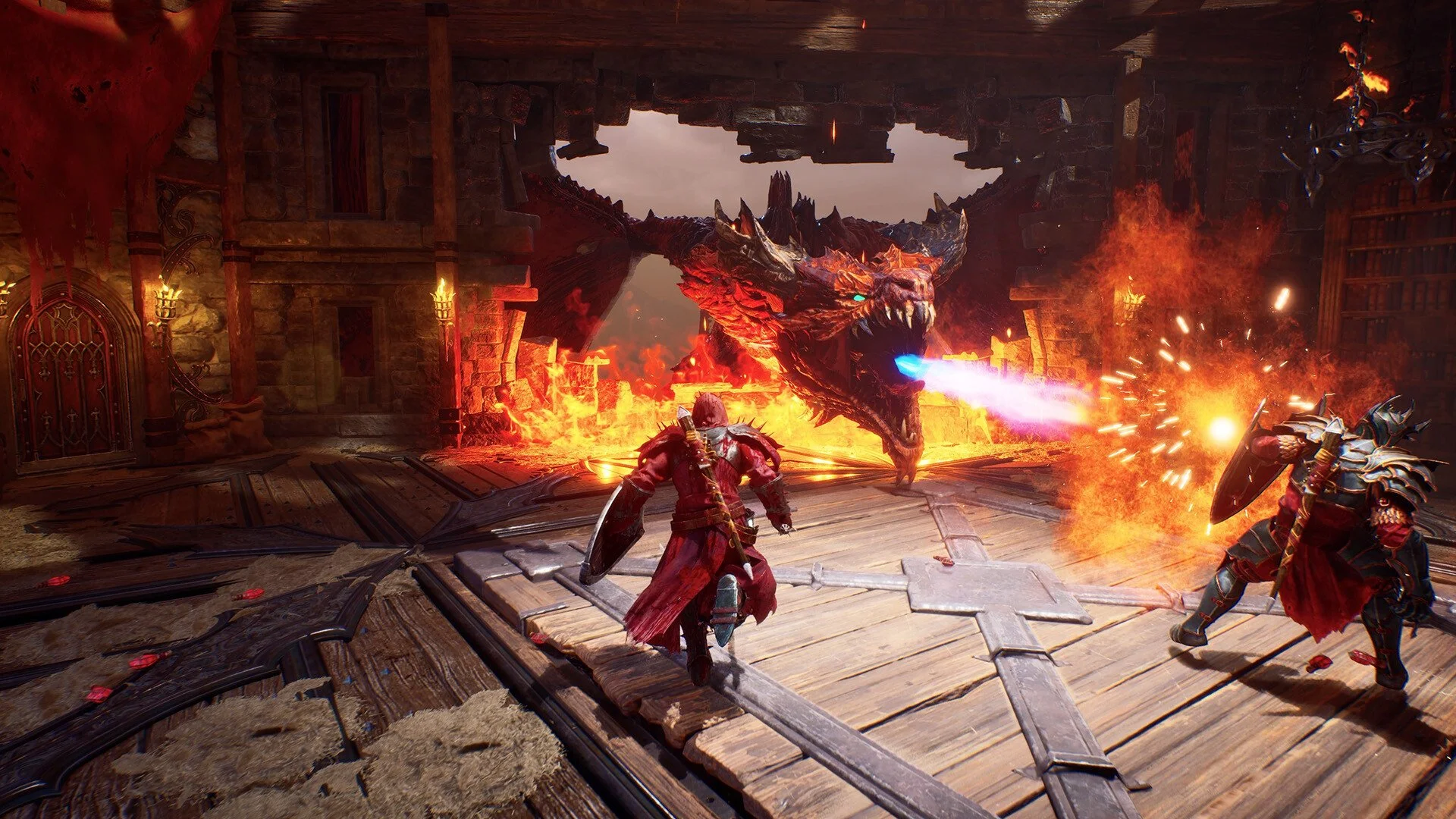
Once the second player has joined, you can prepare for the Hunt and head out together. Crimson Moon still uses its normal loadout and Hunt structure in multiplayer, so both players bring their own build into the run rather than choosing traditional co-op classes.
Why Can't I Play Co-op in Crimson Moon?
If the multiplayer options aren't appearing at all, first make sure you've reached Sanctus Clypeus. Crimson Moon doesn't begin as an immediate two-player lobby, so someone still working through the opening may simply need to progress farther before trying to connect.
If both players are already at the hub, double-check that the host actually created the session through Host Game and that the other player selected Join Via Code with the correct Host Code. Quick Match is intended for matchmaking and isn't the option you want when you're deliberately joining a specific private host.
There have also been some launch-period co-op connection problems, so a failed attempt doesn't necessarily mean you're using the wrong menu. If the code and lobby settings look correct but the second player still can't connect, I would have the host create a fresh session and try the new Host Code before changing anything unrelated to multiplayer.
How to Invite Friends in Crimson Moon
The easiest way to play Crimson Moon with a friend is to have one player reach Sanctus Clypeus and select Host Game, create a private session, then send the displayed Host Code to the other player. The second player selects Join Via Code and enters that code to connect.
If you're not inviting anyone specific, select Quick Match instead. Once you're together, Crimson Moon supports two players for the Hunt. For the broader multiplayer mechanics after you've actually connected, including shared lives, scaling, and how many people can play, use my full Crimson Moon co-op guide.