Planet Zoo 2 can sometimes show an Offline status even when Steam, PlayStation, Xbox, and your internet connection are working normally. When that happens, online features such as Franchise Mode and the Frontier Workshop may become unavailable, with some players getting stuck offline immediately after launch while others lose their connection after previously getting online.
Jump To Section:
How to Fix Offline Mode
Try the Workshop Fix
Check Your Frontier Account
Restart the Game & Platform
Check for a Server Problem
Offline on PS5 or Xbox
What to Do If You're Still Offline
How to Fix Planet Zoo 2 Stuck in Offline Mode
If Planet Zoo 2 says you are offline despite having a working internet connection, first try opening the Frontier Workshop from inside the game. Some players have found that doing this forces Planet Zoo 2 to refresh its Frontier account connection, after which their status changes from Offline to Online.
If that does not work, completely restart the game and your platform, verify that your Frontier account connection is active, and check whether Franchise Mode and the Workshop are failing for other players as well. If both online features are unavailable across multiple platforms, the issue is much more likely to be with Frontier's servers than your own connection.
- Open the Frontier Workshop from inside Planet Zoo 2.
- Complete or refresh the Frontier account connection if prompted.
- Close the Workshop and check whether your status changes to Online.
- Restart Planet Zoo 2 completely if you are still offline.
- Restart Steam, PS5, or Xbox Series X|S.
- Check whether Frontier's online services are currently having problems.
Try the Frontier Workshop Fix First
On PC, one of the more useful launch-day workarounds has been opening the Workshop directly from the player profile area rather than repeatedly trying to enter Franchise Mode.
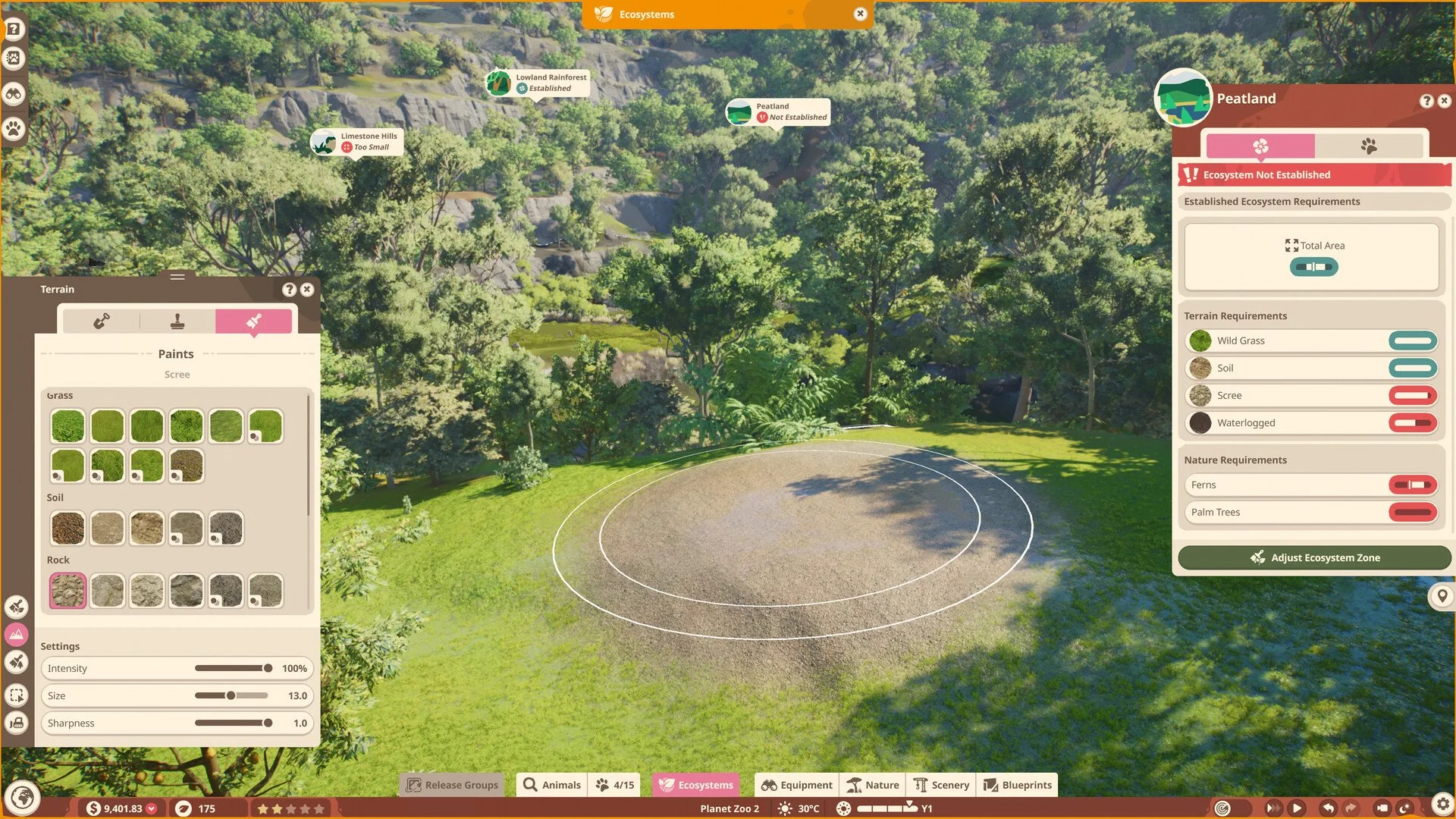
From Planet Zoo 2, open the profile area in the top-right corner where your username and online status are shown. If you are marked Offline, select the option to open the Workshop. The game may then display a Frontier account connection prompt before loading the Workshop.
Some players who already had their Steam and Frontier accounts linked were still shown this connection step. Opening the Workshop and then closing it was enough in those cases to make Planet Zoo 2 recognize the account correctly and switch back online.
This is not a guaranteed fix. Other players have followed the same steps and remained offline, particularly while Frontier's online services were having problems. Still, it is worth trying because it takes only a few seconds and directly forces the game to contact one of its online systems.
Check Your Frontier Account Connection
If the Workshop fix does not work, check that the platform account you are using is actually connected to your Frontier account.
For Steam players, this means confirming that the Steam account used to launch Planet Zoo 2 is linked to the correct Frontier account. Players who previously connected their accounts for Planet Zoo 2 promotional rewards can still occasionally see an Offline status, so an existing link does not completely rule out a temporary authentication problem.
If Planet Zoo 2 asks you to connect an account when opening the Workshop, follow that prompt and then return to the main menu to check your status again.
If Frontier's own account website also refuses to load or authenticate at the same time, that is another indication the problem may be on Frontier's side rather than with the link itself.
Restart Planet Zoo 2 and Your Platform
A full restart is still worth trying because the Offline status can sometimes come from a failed connection during the initial login rather than a persistent account problem.
On Steam, completely close Planet Zoo 2 and exit Steam before reopening both. On console, close the game rather than leaving it suspended, then restart the PS5 or Xbox Series X|S before launching Planet Zoo 2 again.
Do not spend too long repeating the same restart if it does not change anything. Players have reported both outcomes: some reconnect immediately after relaunching, while others remain offline through multiple restarts because the underlying problem is with the online services.
Planet Zoo 2 May Be Offline Because the Servers Are Down
If the Workshop and Franchise Mode are both unavailable, your Frontier account appears correct, and players on other platforms are reporting the same Offline status, there may be nothing wrong with your local setup.
Planet Zoo 2's online systems experienced heavy launch-day demand, and players have reported periods where Franchise Mode and the Workshop work for some users while remaining unavailable for others. Connections can also recover temporarily and then fail again, which makes the problem look like a local bug even when it is server-side.
This is particularly important if you can still browse the internet, use Steam or console network features, and play Planet Zoo 2's offline content normally. Those are all signs that your home connection itself is probably not the problem.
If Franchise Mode specifically is giving you a server connection error after you get your Online status back, the Planet Zoo 2 Franchise Mode server error guide covers that separate issue and the fixes worth trying.
Planet Zoo 2 Offline on PS5 or Xbox
The Offline problem is not limited to Steam. Console players have also reported Franchise Mode and the Workshop remaining unavailable even while their console itself is connected normally.
If you are on PS5 or Xbox Series X|S, first make sure the console's network services are working and that Planet Zoo 2 is fully updated. Then close and reopen the game before checking the Workshop or Franchise again.
If both features remain offline while PC players are reporting the same thing, that strongly points toward a shared Frontier service problem rather than something unique to your console.
Why Offline Mode Blocks Franchise
Planet Zoo 2 Franchise Mode requires an online connection. The mode includes Animal Trading between players, Community Challenges, shared Conservation Credits across your Franchise, and other systems that depend on Frontier's servers.
That is why an Offline status can prevent you from entering Franchise even though other parts of Planet Zoo 2 still work. Career and Sandbox do not rely on the same Franchise server connection, so they can remain playable while the online services are unavailable.
The Frontier Workshop is another useful indicator because it also needs an online connection. If both the Workshop and Franchise are simultaneously unavailable, the problem is broader than one particular Franchise zoo.
What to Do If Planet Zoo 2 Is Still Offline
If you have opened the Workshop, checked your Frontier account connection, restarted the game and platform, and confirmed that your internet works normally, do not immediately reinstall Planet Zoo 2.
A reinstall is unlikely to fix an authentication or server-capacity problem, particularly when other players are getting the same Offline status at the same time.
Instead, wait a short period and try the Workshop again. Online service problems can be intermittent, so the same account that cannot connect now may begin working later without any changes to your installation.
- Do not unlink accounts repeatedly unless you know the link is incorrect.
- Do not reinstall the game solely because the status says Offline.
- Do not assume working Wi-Fi means Frontier's servers must also be online.
- Retry the Workshop later if the account and platform checks are all normal.
- Use Career or Sandbox while Frontier's online systems are unavailable.
If the problem persists after Frontier's services are clearly working for other players again, then it becomes more reasonable to investigate a platform-specific account, firewall, network, or installation issue.