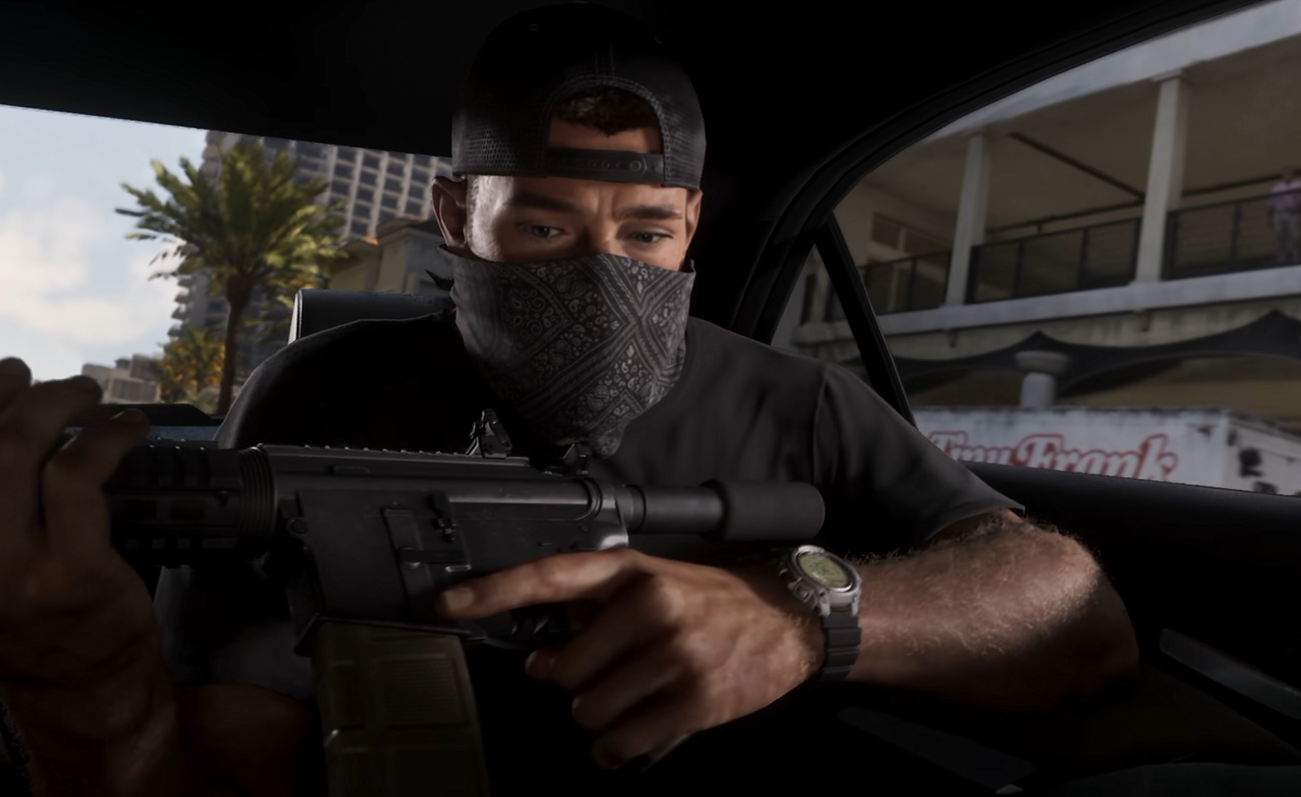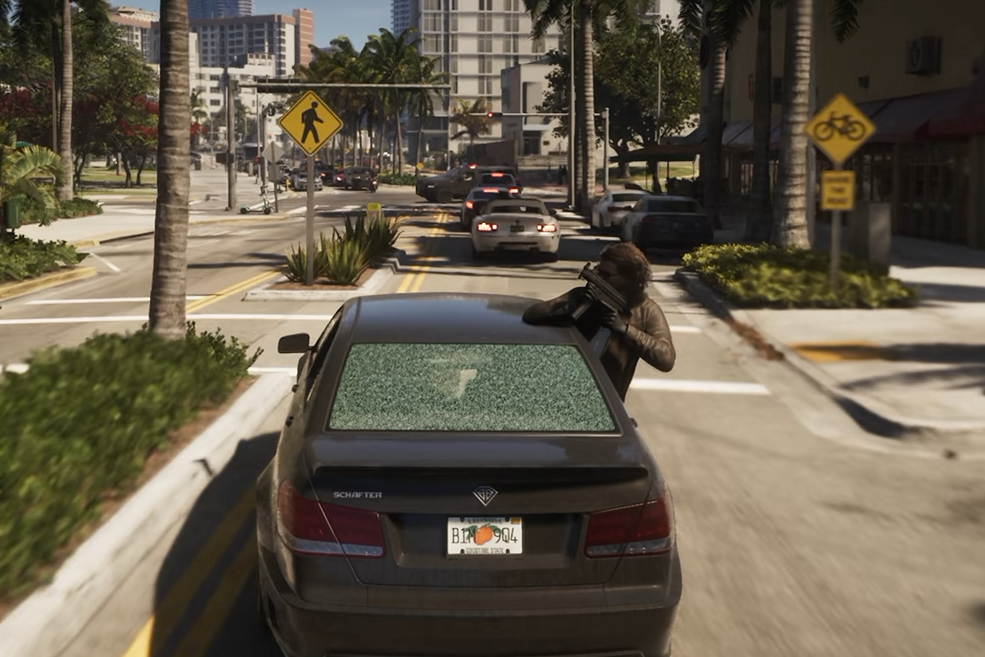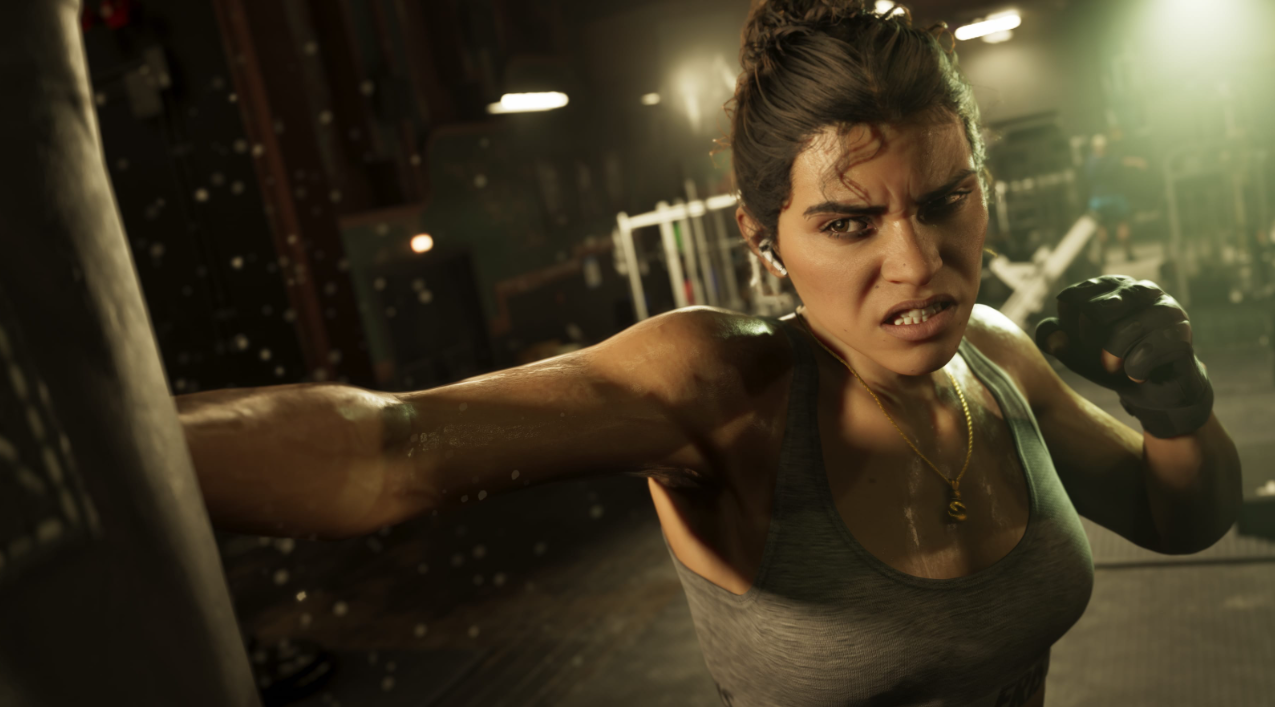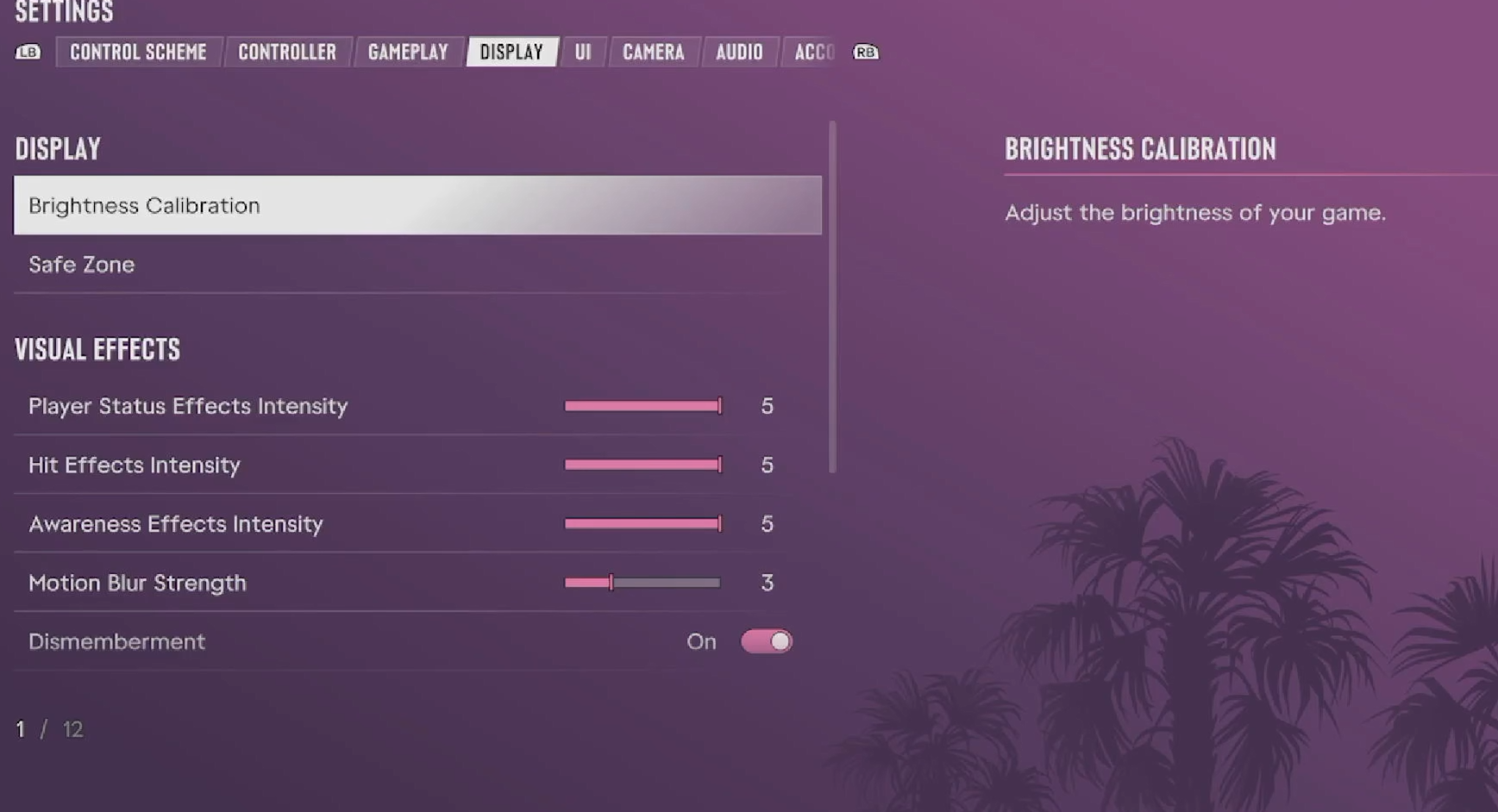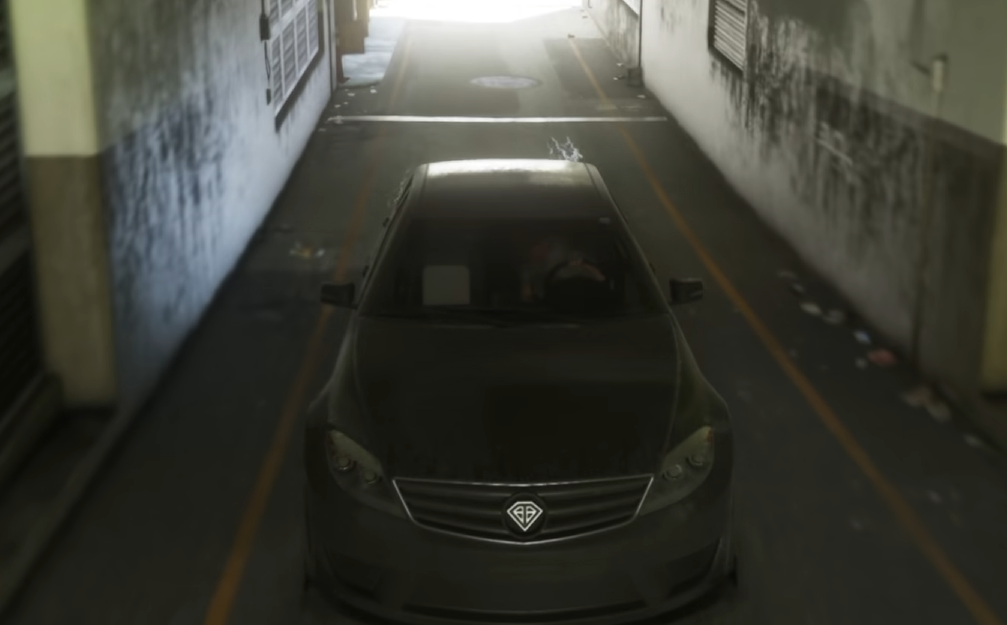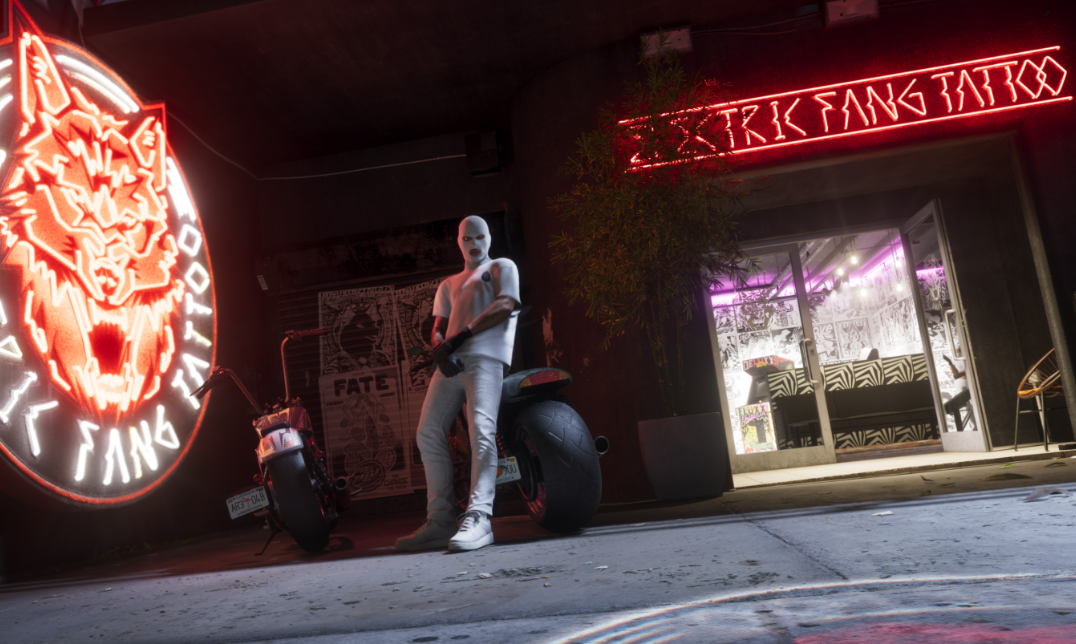
GTA 6's HDR settings can make Vice City's sunlight, neon lighting, and nighttime streets look dramatically different. The default calibration is a reasonable starting point, but OLED and LED displays don't behave identically. Here are the best HDR settings to start with and how to adjust them for your screen.
Best HDR Settings for GTA 6
For most players, we recommend starting with Max Brightness at 600, Black Levels at 50, and Paper White at 50. These are GTA 6's default HDR values and provide a useful baseline before adjusting for your TV or monitor.
These values aren't universally optimal. A TV capable of much brighter HDR highlights may benefit from a higher Max Brightness setting, while an OLED display may look better with a lower Black Levels value.
We recommend changing one setting at a time rather than copying an entire preset designed for a different television.
How to Calibrate HDR in GTA 6
Calibrate your console first, then fine-tune GTA 6's dedicated HDR controls. This prevents the game's settings from compensating for an incorrectly configured console output.
What Do the Three HDR Settings Change?
Max Brightness controls the peak intensity of HDR highlights, including sunlight and bright reflections. Match this to your display's capabilities rather than setting it as high as possible.
Black Levels determine how the darkest parts of the image appear. Too high can make nighttime scenes look gray, while too low can hide details in shadows.
Paper White affects the brightness of ordinary illuminated areas. If daylight feels excessively bright even when highlights look correct, try lowering Paper White slightly before changing Max Brightness again.
Best GTA 6 HDR Settings for OLED TVs
OLED owners may want to experiment beyond the default 600/50/50 configuration. OLED's ability to display extremely dark blacks makes the Black Levels adjustment particularly noticeable.
Some LG OLED players have reported good results with the following starting points:
For example, some LG C5 owners are using approximately 1200 Max Brightness, 15 Black Levels, and 50 Paper White. Other OLED players prefer keeping Black Levels closer to 35 or 50 to preserve visibility in dark areas.
These are player-tested preferences, not official presets for every OLED. If lowering Black Levels makes shadows disappear, raise the value until dark details become visible again.
How to Fix Washed-Out HDR in GTA 6
If GTA 6 looks gray, faded, or less colorful with HDR enabled, don't immediately increase every brightness slider. The problem may be how your television handles HDR rather than the game's overall brightness.
If blacks look gray, reduce Black Levels gradually while checking that details remain visible in shadows.
If the entire picture is too bright, lower Paper White before reducing your display's peak HDR brightness.
If bright objects lose detail, revisit Max Brightness and your television's HDR tone-mapping settings.
If colors still look dull, compare your television's HDR Game Mode settings and try recalibrating HDR at the console level.
On supported televisions, HGiG can provide more predictable HDR calibration, although some players prefer dynamic tone mapping for a brighter overall picture. Both approaches can look different depending on the display.
For the best results, calibrate GTA 6 using your own screen rather than assuming a higher brightness number automatically produces better HDR.