Transport Fever 3 Best Performance Settings: FPS & Lag Fix
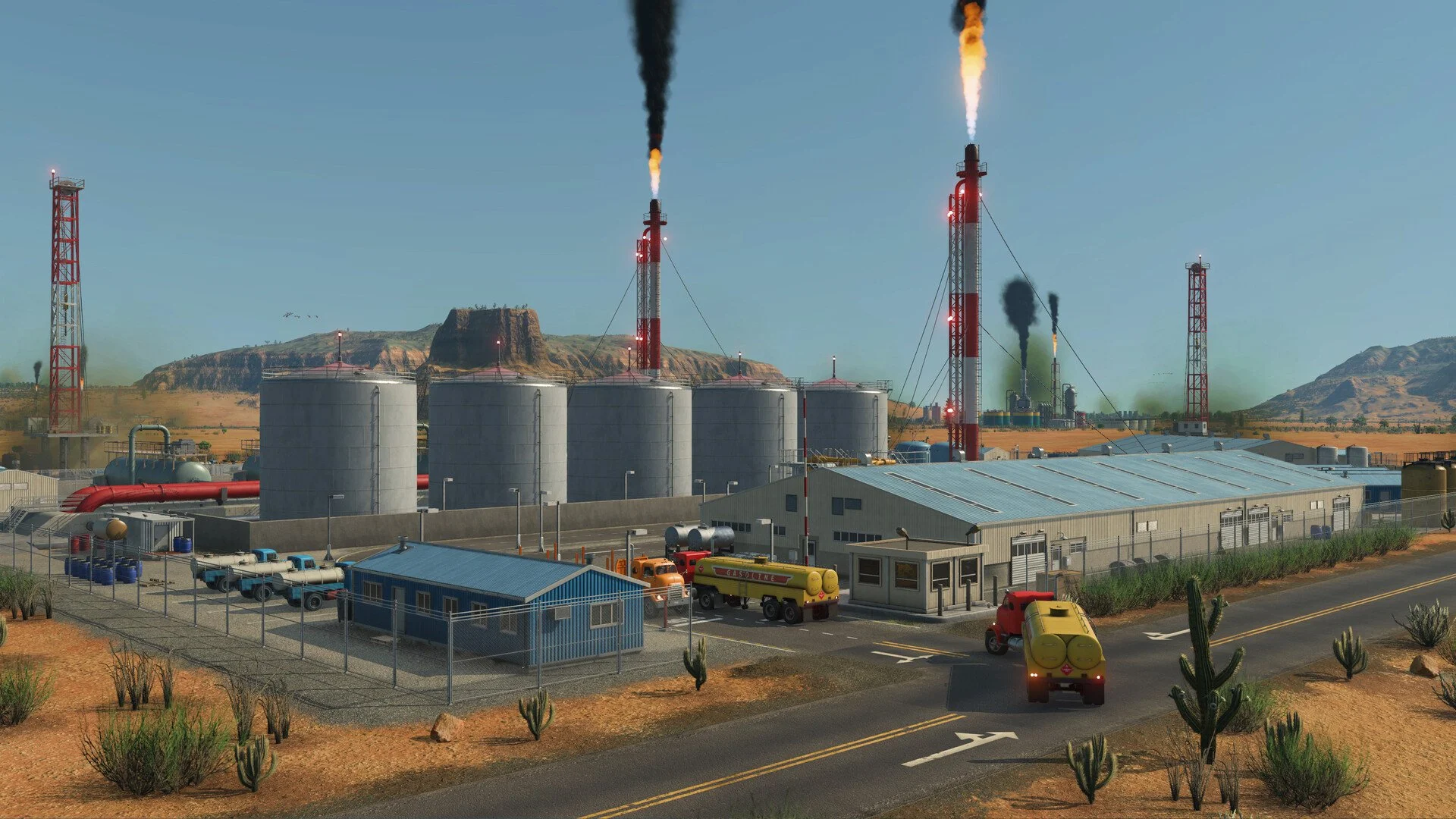
Transport Fever 3 can be demanding for two very different reasons, and knowing which one is hurting your performance matters more than blindly setting everything to Low. Rendering a detailed city can push the GPU, but a huge late-game network also forces the CPU to keep up with more passengers, vehicles, cargo, routes, and other simulation work.
For the best balance, I would lower shadows, reflections, grass, ambient occlusion, and screen resolution before sacrificing everything else. Just don't expect those changes to completely fix a massive CPU-limited save. If lowering graphics barely changes your FPS, the simulation itself is probably the bigger bottleneck.
Jump To Section:
Best Performance Settings
Is Your CPU or GPU the Problem?
Shadows, Reflections & Grass
Screen Resolution
Ambient Occlusion
V-Sync & FPS Caps
Late-Game Performance
PC Requirements
Use These Transport Fever 3 Settings for Better Performance
For a performance-focused setup, I would start with the settings below. The goal isn't to destroy the image quality just to gain a few frames; it's to reduce the visual options most likely to matter while leaving the game looking good enough to enjoy a large network.
Recommended Performance Settings
• Screen Resolution: Native first; lower only if GPU-limited
• Shadows: Medium, then Low if you still need FPS
• Reflections: Low or Off for maximum performance
• Grass: Medium or Low
• Screen-Space Ambient Occlusion: Off for maximum FPS
• V-Sync: Off while testing performance
• Other visual settings: Lower gradually rather than immediately using the lowest preset
I'd start there and test the same busy part of your map after every major change. Don't judge performance from an empty 1900 map if the problem only appears after your cities and transport network become enormous.
First Find Out Whether You're CPU or GPU Limited
This is the most important part of optimizing Transport Fever 3.
Load the save where performance is actually bad, position the camera over the same busy city, and reduce several graphics settings. If FPS jumps noticeably, you have meaningful GPU headroom to recover through the graphics menu.
If FPS barely changes even after reducing visual quality, repeatedly lowering graphics isn't going to solve the real problem. At that point you're much more likely to be limited by the simulation workload on the CPU.
Quick Bottleneck Test
• Load your largest or slowest save
• Look over a busy city or transport hub
• Note your current FPS
• Lower shadows, reflections, grass, and resolution
• Test the exact same camera position again
• Big improvement: Keep tuning graphics
• Little improvement: The simulation/CPU is probably limiting performance
This also explains why a powerful graphics card doesn't guarantee perfect late-game performance. A faster GPU can render the scene faster, but it can't eliminate the calculations required to run a much larger transport network.
Lower Shadows, Reflections, and Grass First
If your system is actually GPU-limited, these are the settings I would attack before lowering everything across the board.
Shadows are a good starting point because Transport Fever 3 can put a huge number of buildings, vehicles, trees, and other objects on screen simultaneously. I would use Medium first and only drop to Low if you still need more performance.
Reflections are another setting I'd reduce early, especially around water-heavy maps and areas where the added visual effect isn't worth sacrificing smoothness.
Grass is also worth reducing if you're struggling with frame rate or heavy frame drops while moving the camera through dense environments.
My First Three Settings to Lower
• 1. Shadows
• 2. Reflections
• 3. Grass
Launch-day players have already reported improvements from reducing this combination, so I'd try these before touching image-quality settings that affect the entire screen.
Lower Screen Resolution if Your GPU Is the Bottleneck
Screen resolution is one of the most direct ways to reduce GPU workload because lowering it means the game has fewer pixels to render every frame.
I wouldn't immediately reduce resolution on a powerful GPU, though. Start at your monitor's native resolution, lower the heavier visual options first, and only reduce Screen Resolution when GPU performance is still the limiting factor.
If lowering the resolution gives you a substantial FPS increase, you've confirmed that rendering load is part of the problem.
If you can dramatically reduce the rendered resolution and your late-game FPS remains almost identical, that's another strong sign the CPU simulation is setting the limit instead.
Resolution Rule
• Strong GPU + low FPS: Test other settings first
• High GPU usage: Lower resolution
• Large FPS gain after lowering it: GPU bottleneck
• Almost no FPS change: Look at CPU/simulation load instead
I also wouldn't automatically call the Screen Resolution option DLSS or FSR. Lower internal resolution and a true modern temporal upscaler are not necessarily the same thing, so until the game's implementation is clearly documented, treat it as a resolution-performance control rather than assuming a particular upscaling technology is active.
Disable Screen-Space Ambient Occlusion for Maximum FPS
Screen-Space Ambient Occlusion, or SSAO, adds additional contact shading around objects and surfaces. It can make buildings, vehicles, vegetation, and terrain look more grounded, but it isn't necessary for gameplay.
If you're chasing maximum performance, I'd turn SSAO off.
If your system already maintains the frame rate you want, leaving it enabled is reasonable because Transport Fever 3 benefits visually from the extra depth in dense city scenes. But it's one of the first purely cosmetic effects I'd sacrifice on a struggling GPU.
Turn V-Sync Off While Finding Your Best Settings
I recommend disabling V-Sync while you're initially testing performance. That lets you see whether a setting actually raises your unrestricted frame rate instead of potentially running into a synchronization ceiling.
Once you've finished tuning, you can turn V-Sync back on if you're getting visible screen tearing and prefer a synchronized presentation.
The launch version has also been criticized for having fairly limited native performance controls compared with many modern PC releases, including reports of no dedicated in-game frame-rate cap.
If you want a fixed maximum frame rate and the game doesn't expose the option you need, the cleaner workaround is to use your graphics driver's per-game frame limiter rather than changing a global setting that affects every game.
Graphics Settings Can't Completely Fix Late-Game Simulation Lag
This is where Transport Fever 3 differs from a typical GPU-heavy game.
A fresh map has relatively little to simulate. Later, you've potentially added huge cities, thousands of passengers and cargo movements, large numbers of vehicles, complicated routing, and transport lines spanning the entire map.
At that point, lowering graphical quality may still make rendering faster, but it doesn't remove the underlying simulation workload.
If Late-Game FPS Is Still Low
• Test performance while the simulation is paused
• Compare normal speed with faster simulation speeds
• Check whether lowering graphics actually changes FPS
• Test away from your largest city or busiest network
• Compare a smaller/new map with the same graphics settings
• Treat huge maps and heavily modded saves as inherently more demanding
If the game becomes significantly smoother while paused or on a much smaller save, I wouldn't keep sacrificing visual quality expecting a miracle. Your system is likely spending more of its time keeping the simulation running than drawing the scene.
What to Do About Stutters and Bad 1% Lows
Average FPS doesn't tell the entire story. Transport Fever 3 can feel rough even when the average looks acceptable if individual frames suddenly take much longer to render or simulate.
For camera-related stutter, I'd start by reducing grass, shadows, and reflections, then test the same area again. If the drops are concentrated around dense cities or forests, reducing the amount of detailed scenery being rendered can help.
If the stutters correlate more closely with simulation speed, city size, or an extremely busy network, graphics changes may have less effect.
When diagnosing the problem, test one variable at a time. Changing six graphics options, simulation speed, and camera position simultaneously makes it impossible to know what actually helped.
Transport Fever 3 PC System Requirements
The official requirements also hint at how demanding the game can become. The minimum specification starts with older six-core CPUs and 4 GB graphics cards, while the recommended CPU tier jumps all the way to an Intel Core i7-13700K or AMD Ryzen 7 7800X3D.
Minimum PC Requirements
• OS: Windows 10 64-bit or Windows 11
• CPU: Intel Core i5-8400 or AMD Ryzen 5 2600X
• RAM: 8 GB
• GPU: GTX 1060, RX 480, or Intel Arc A380
• VRAM: 4 GB
Recommended PC Requirements
• OS: Windows 11
• CPU: Intel Core i7-13700K or AMD Ryzen 7 7800X3D
• RAM: 16 GB
• GPU: RTX 3060 Ti, RX 6700 XT, or Intel Arc A770
• VRAM: 8 GB
If you're around the minimum GPU specification, I'd start more aggressively with reduced shadows, reflections, grass, SSAO, and resolution. Around the recommended GPU tier, I would preserve native resolution and image quality first, then lower individual expensive settings only as necessary.
The Best Transport Fever 3 Settings Depend on Where the Bottleneck Is
For most systems, my starting point would be Medium shadows, reduced reflections and grass, SSAO off, native resolution, and V-Sync off while testing. From there, lower Screen Resolution only if the GPU is still struggling.
The key is not to confuse simulation slowdown with graphics slowdown. If lowering visual settings gives you a large improvement, keep optimizing the GPU side. If Low and High settings perform almost identically on the same huge save, stop destroying the graphics and focus on the fact that the simulation has become the limiting workload.
Transport Fever 3 is the kind of game where the best performance settings can recover frames, but no graphics menu can make an infinitely growing transport simulation free to calculate.