

How to Turn on DLSS | Battlefield 6 (BF6)
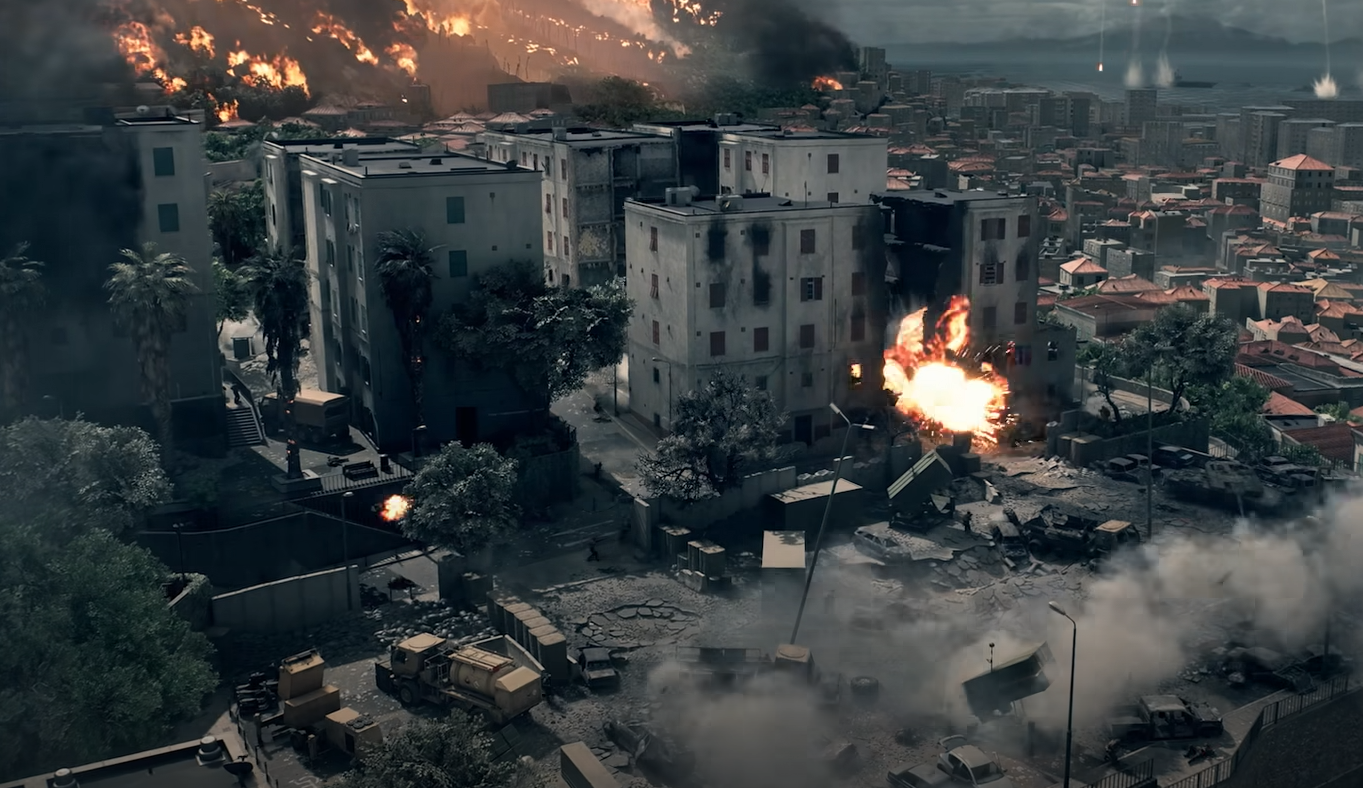
DLSS in Battlefield 6 improves FPS while keeping graphics sharp, making it an important setting for PC players. The Open Beta currently has a confirmed bug that disables DLSS and DLAA, so the option will not appear until the developers release a fix.
When DLSS is restored, you can enable it in the Graphics settings. Select the mode that best fits your balance of frame rate and image quality.
How to Enable DLSS in Battlefield 6
Launch Battlefield 6 and wait for the main menu.
Press Escape on PC or the menu button on console to open Settings.
Go to the Graphics tab.
Scroll down to the Upscaling section.
Select DLSS and choose Performance, Balanced, or Quality.
Performance gives the highest FPS boost. Balanced offers a middle ground. Quality keeps visuals closest to native resolution.
What to Do if DLSS Is Missing
DLSS and DLAA are temporarily disabled in the Open Beta. The developers have confirmed the issue and will restore the options in an upcoming update.
Until then, use AMD FSR or Intel XeSS from the same Upscaling menu. Restart the game after updates to see if DLSS returns.
Tips for Using DLSS in Battlefield 6
Use Performance mode for competitive matches where FPS is most important.
Use Balanced for a mix of speed and detail.
Use Quality for the sharpest image possible.
Pair DLSS with ray tracing to reduce FPS loss.
Final Blurb
Once restored, DLSS in Battlefield 6 can give you smoother gameplay without losing sharp visuals. Enable it in Graphics settings, pick your mode, and enjoy better performance.
FAQ
Why is DLSS not showing up in my settings?
It is disabled in the Open Beta due to a bug and will return in a future update.
What graphics cards support DLSS in Battlefield 6?
You need an Nvidia RTX 20 series or newer GPU.
Can DLSS be used with ray tracing enabled?
Yes, and it helps reduce FPS drops when ray tracing is active.
Is DLSS better than FSR or XeSS?
On supported Nvidia cards, DLSS often delivers sharper visuals and better performance.
More Battlefield 6 Articles


